
Open Graph and Twitter Card Tags: How to Control Link Previews
When someone shares your page in a chat or on social media, a small set of meta tags decides what the preview shows. Here's how to set them up and test them.
By SEO Tool Orbit7 min read
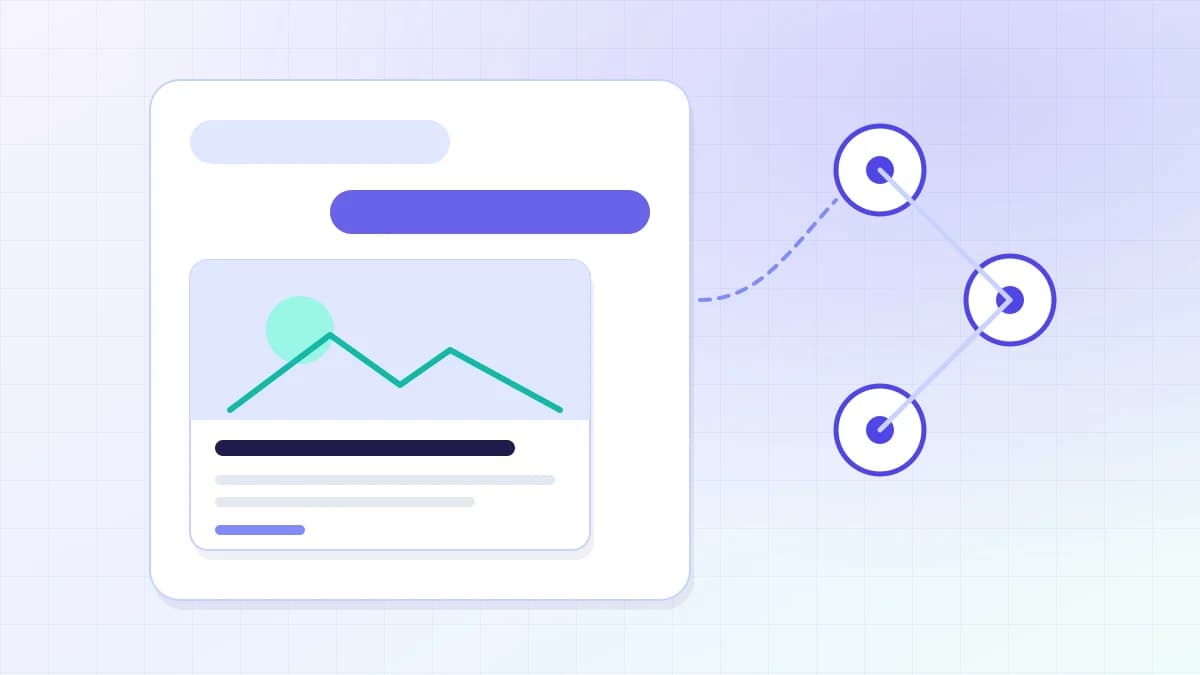
Paste a link into WhatsApp, Slack, LinkedIn, Facebook or X, and within a second a preview appears: a title, a line of description and, usually, an image. That card often decides whether anyone clicks. It's built from a few meta tags in your page's <head>, and if you don't set them, each app guesses — sometimes with your logo, a cookie banner or nothing at all.
In short: add Open Graph tags — at least og:title, og:type, og:image and og:url, plus og:description and og:image:alt — to every page you expect people to share, and a twitter:card tag to choose X's layout. Use an absolute HTTPS image URL for a landscape image around 1200×630 with the important content in the middle. Make sure the tags are in the server-rendered HTML, check them, and refresh the platforms' caches after changing them.
What Open Graph is
The Open Graph protocol was introduced by Facebook so any web page could describe itself as a rich object when shared. It's now read by most social networks and messaging apps. The tags are ordinary <meta> elements with a property attribute:
<meta property="og:title" content="How to Choose Running Shoes for Flat Feet">
<meta property="og:description" content="Which features matter, how to test the fit, and five mistakes to avoid.">
<meta property="og:type" content="article">
<meta property="og:url" content="https://example.com/guides/running-shoes-flat-feet">
<meta property="og:image" content="https://example.com/images/flat-feet-guide-1200x630.jpg">
<meta property="og:image:width" content="1200">
<meta property="og:image:height" content="630">
<meta property="og:image:alt" content="A runner's foot on a pressure map showing a flat arch">
<meta property="og:site_name" content="Example Running">
Open Graph tags control how links look when shared. They aren't a ranking factor in search results; their value is in getting clicks from places where people share links.
The tags that matter
| Tag | What it does | Notes |
|---|---|---|
og:title | The preview headline | Required by the protocol. Can be shorter than the page title and needn't repeat your brand. |
og:type | The kind of object | Required. website for most pages, article for posts. |
og:image | The preview image | Required. Absolute HTTPS URL. |
og:url | The page's permanent address | Required. Use the canonical URL. |
og:description | One or two sentences of summary | Optional but recommended. |
og:site_name | Your site's name | Shown by some apps above or below the title. |
og:image:alt | A description of the image | The protocol says pages that set og:image should set it: describe what's in the image, not a caption. |
og:image:width / height | The image's size in pixels | Helps some apps lay out the card on the first share. |
The Open Graph Generator produces a correctly formatted set of these tags from a form, which is handy when your CMS doesn't add them.
What apps show when the tags are missing
Without Open Graph tags, each app improvises, and they don't all improvise the same way. Most fall back to the page's <title> for the headline and the meta description for the text, if there is one. For the image, they pick something they find on the page — often the logo, a tracking pixel, an icon or the first photo in the HTML, cropped unpredictably — or show no image at all. That's why the same link can look fine in one app and broken in another. Setting the tags explicitly replaces guesswork with one consistent card.
Extra tags for articles and multilingual sites
A few optional tags add useful detail where they apply:
- Articles: with
og:typeset toarticle, the protocol definesarticle:published_time,article:modified_time,article:author,article:sectionandarticle:tag. Some apps show the date or author; keep them accurate and in step with the dates on the page. - Languages:
og:localestates the page's locale (the default isen_US), andog:locale:alternatelists the other languages the same page is available in. - Site name: set
og:site_nameonce in your template so every page carries it.
Don't add tags you can't keep accurate. A wrong publication date or a stale author name is worse than leaving the tag out.
Twitter/X cards
X uses its own twitter: tags, but falls back to Open Graph for the title, description and image when its own tags are missing. In practice, add one tag to choose the layout and only add the rest when you want X to show something different:
<meta name="twitter:card" content="summary_large_image">
<meta name="twitter:site" content="@example">
summary_large_image shows a large image above the title; summary shows a small square thumbnail beside it. twitter:site names your account and twitter:creator the author's. The Twitter Card Generator builds these tags for you.
Writing the preview text
- Lead with the benefit. A preview title has little room; say what the reader gets.
- Keep it honest. The title and description should describe the page people land on. Bait that the page doesn't deliver costs trust.
- Don't copy your meta description blindly. It's written for search results; a share preview may deserve a more conversational line. Our titles and descriptions guide covers the search-side versions.
- Write per page. A site-wide default is a fallback, not a strategy for pages you want shared.
Choosing and preparing the image
- Size and shape: a landscape image around 1200×630 pixels (roughly 1.91:1) displays well in most apps. Smaller images may be shown as a small thumbnail instead of a large card.
- Safe area: some apps crop to a square or a narrower shape, so keep faces, products and any text near the centre.
- Little or no text: previews are small on phones; a few large words at most.
- File size: keep it small — a few hundred kilobytes is usually plenty. Resize Image sets exact dimensions and Compress Image reduces the file without visible loss.
- Reachable: an absolute HTTPS URL that loads without a login, cookies or a redirect chain.
- Describe it: add
og:image:alt. The same principles as alt text on the page apply — see our image SEO and accessibility guide.
Make og:url match your canonical
og:url is treated as the page's identity. If it names a different address from your canonical tag — a tracking-parameter version, the HTTP version, a staging host — shares can be attributed to the wrong URL and previews can show the wrong page. Use the same absolute URL in both, as described in the canonical tags guide.
Server-render the tags
The crawlers that build previews generally don't run JavaScript, so tags added by client-side code may never be seen. Check the page source (not the inspector, which shows the page after scripts run) and make sure the tags are there in the HTML the server sends.
Testing and caching
Platforms cache previews, often for a long time, so a fix may not appear on the next share. To check and refresh:
- Check the tags with the Open Graph Checker, which reports missing or incomplete tags, and the Meta Tags Analyzer for the rest of the head.
- Facebook: Meta's Sharing Debugger shows what Facebook sees and has a button to scrape the page again.
- LinkedIn: the Post Inspector shows LinkedIn's preview and refreshes its cache.
- X and messaging apps: paste the link into a new post or chat to see the current preview.
- Stubborn caches: changing the image URL (for example, a new filename) forces apps to fetch the new image.
A worked example
Suppose a blog's posts always share with the site logo as the image. Viewing the source shows only og:title and og:description; there's no og:image, so apps pick whatever image they find. The fix: give each post an og:image using its cover image at 1200×630, add width, height and alt tags, add twitter:card set to summary_large_image, set og:url to the canonical URL, and re-scrape a few posts in each platform's tool to confirm the new cards.
Checklist
- og:title, og:type, og:image and og:url on every shareable page
- og:description, og:site_name and og:image:alt added
- twitter:card chosen
- Image: absolute HTTPS URL, landscape, about 1200×630, centred content, small file
- og:url identical to the canonical URL
- Tags present in the server-rendered HTML
- Previews checked, and caches refreshed after changes
Common mistakes
- Relative image URLs such as
/images/cover.jpg. - The same title and image on every page.
- An image that's tiny, very tall, or has important content at the edges.
- Tags injected by JavaScript only.
- An image served over HTTP, behind a login or blocked for crawlers.
- Changing tags and expecting old shares to update without refreshing the cache.
Frequently asked questions
Do Open Graph tags improve search rankings?
No. They control how your links look when shared. Better previews can bring more clicks from social and chat apps, but they aren't a search ranking signal.
Do I need both Open Graph and Twitter tags?
Usually you need Open Graph plus twitter:card. X reads Open Graph for the title, description and image when its own tags are absent.
Why does the old image still show?
The platform has cached the earlier preview. Re-scrape the URL in its debugging tool, or change the image's URL.
What size should og:image be?
A landscape image around 1200×630 pixels is a safe default for most apps. Keep the file small and the key content central.
Next step
Run your homepage and your three most-shared pages through the Open Graph Checker. Fill in any missing tags with the Open Graph Generator, then re-scrape each page in Meta's and LinkedIn's tools to see the new previews.
- #Metadata
- #Social Sharing
- #Image SEO
Related reading
AI & SEO
How to Write SEO Titles and Meta Descriptions That Earn Clicks
Your title and description are your page's first impression in search. Here's how to write them for the searcher, avoid common mistakes, and test what works.
5 min read
Website Optimization
How to Optimize Images for SEO, Accessibility, and Speed
Image SEO is mostly careful HTML. Here's how to mark up images so they load fast, describe themselves to screen readers, and can be found in image search.
5 min read

Technical SEO
How to Use Canonical Tags to Prevent Duplicate URL Problems
The same page often lives at several addresses. Canonical tags tell search engines which one to index — when they agree with your other signals.
5 min read
Website Optimization
SEO Link Building Guide: How to Earn High-Quality Backlinks Naturally
Links still help search engines find and judge pages, but the shortcuts can cost you. Here's how to earn links that last, and how to recognise the ones to avoid.
7 min read