
Google Search Console Guide: How to Monitor and Improve Website Search Performance
Search Console is Google's own report on how your site performs in Search. Here's how to set it up, read each report correctly and turn what you find into fixes.
By SEO Tool Orbit7 min read
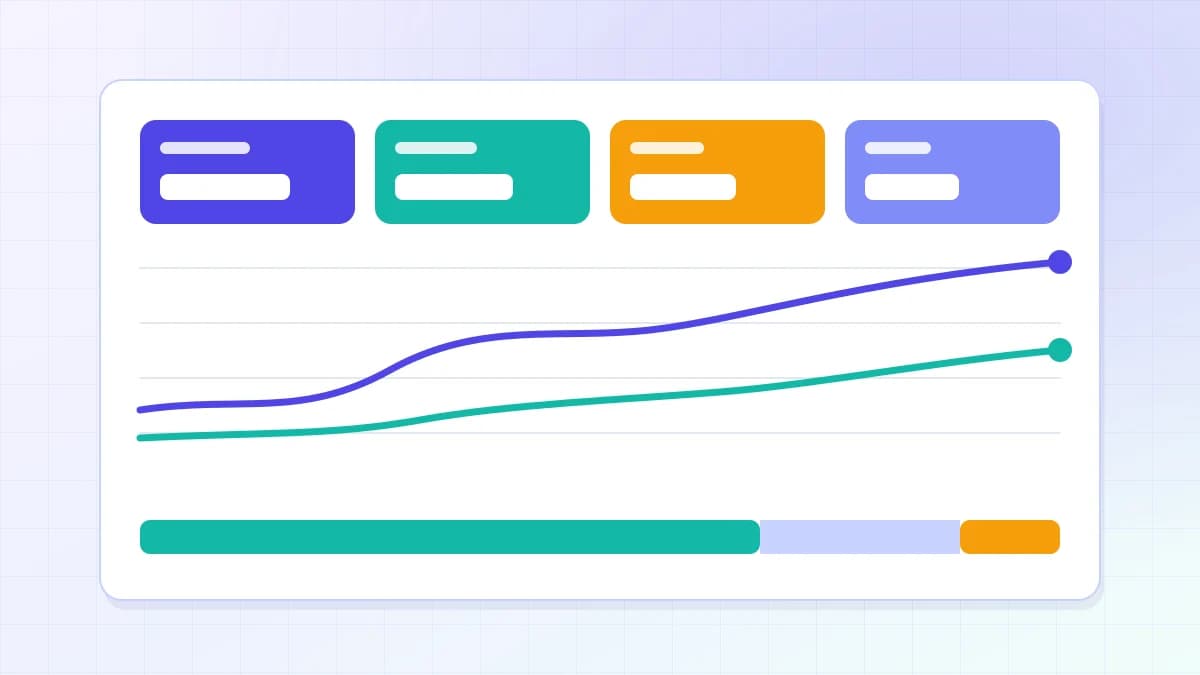
Most website analytics start when someone arrives. Google Search Console covers what happens before that: which searches showed your pages, how often people clicked, which URLs Google has indexed, and what it found wrong. It's free, it comes straight from Google, and for anyone responsible for a website it's usually the first place to look when search traffic changes.
In short: verify your site, preferably as a Domain property. Use the Performance report to see queries, pages, clicks, impressions, CTR and position. Use the Page indexing report to find important pages that aren't indexed, URL Inspection to diagnose a single URL, and the Sitemaps report to confirm Google can read your sitemap. Then act on what the numbers show, starting with pages that already get impressions.
What Search Console does and doesn't do
Search Console reports on how Google crawls, indexes and shows your site. It doesn't change your rankings, and verifying a site gives it no advantage. Think of it as the counterpart to an analytics tool: Search Console describes the search result, and analytics describes the visit that follows.
How to verify website ownership
First choose a property type:
| Property | Example | Covers | Verification |
|---|---|---|---|
| Domain | example.com | All subdomains and protocols, including www and non-www | DNS record only |
| URL-prefix | https://example.com/shop/ | Only URLs starting with that exact address | Several methods |
A Domain property is the better default, because it shows everything in one place. A URL-prefix property is useful for watching one section, such as a country folder.
For a Domain property, add the TXT record Search Console gives you at your domain registrar or DNS host, then click Verify. DNS changes can take a while to spread, so try again later if it fails at first. For a URL-prefix property you can also upload an HTML file, add a meta tag, or use an existing Google Analytics or Tag Manager snippet.
Leave the token in place afterwards. Search Console checks it periodically, and removing the record or file eventually costs you access. If more than one person looks after the site, add a second verified owner so access doesn't depend on one account.
Understanding the Performance report
The Performance report defaults to the last three months and can go back 16 months. Below the chart, tabs break the data down by Queries, Pages, Countries, Devices, Search appearance and Dates.
Clicks, impressions, CTR and average position
| Metric | What it counts | How to read it |
|---|---|---|
| Clicks | Clicks from Google results through to your site | The traffic Google actually sent |
| Impressions | Times a link to your site was seen, or potentially seen, in results | Your visibility. An item low on the page usually still counts |
| CTR | Clicks divided by impressions | Compare only like with like, because it depends heavily on position |
| Average position | The average of your topmost position for each query | A rough guide; it blends strong and weak queries |
Google's metric definitions give a useful example: if your site appears at positions 2, 4 and 6 for one search, that query records position 2. If one query records 2 and another records 3, the average is 2.5. A site-wide average is therefore pulled around by whichever queries happen to be in the mix, so filter to a query or a page before drawing conclusions.
Why the numbers don't always add up
- The chart counts by property, while the Pages tab counts by page. Two of your results on one search are one impression in the chart and two in that table.
- Very rare queries are anonymized for privacy. They're left out of the table but included in the totals.
- The table shows at most 1,000 rows. For more, use the export options or Bulk Data Export.
- The newest data is preliminary and can change, shown as a dotted line.
Understanding the Page indexing report
This report shows how many known URLs are indexed and gives a reason for those that aren't. Google states the goal clearly: the canonical version of every important page indexed. A large "not indexed" number can be perfectly healthy if it's made up of redirects, duplicates and pages you excluded on purpose.
Use the dropdown at the top to switch from all known pages to submitted pages only, or to one sitemap. That filter answers the question that matters: of the pages I want indexed, which aren't? When you've fixed every instance of an issue, click Validate fix. Validation typically takes up to about two weeks. Our guide to pages Google isn't indexing goes through each reason in turn.
URL Inspection and live testing
URL Inspection looks at one address in two ways:
- The indexed result is Google's stored copy from its last crawl. "URL is on Google" means the page is eligible to appear, which isn't a promise that it will.
- Test live URL fetches the page now, so it's how you confirm a fix. View tested page then shows the rendered HTML, a screenshot, headers and console output.
A passing live test doesn't guarantee indexing either, because it can't check things like manual actions or which canonical Google will choose. Request indexing asks Google to recrawl a URL and has a daily quota. Keep it for a few important pages, and rely on your sitemap for anything larger.
Sitemap submission and monitoring
- Publish your sitemap, ideally at the root of the site. The Sitemap Generator can build one if your platform doesn't.
- Run a live URL inspection on it and confirm the page fetch is successful.
- Open the Sitemaps report, paste the URL and submit it.
- Come back and check the status: Success, Has errors or Couldn't fetch.
"Discovered pages" is only the number of URLs Google read from the file. It doesn't mean they were crawled or indexed. For that, filter the Page indexing report by the sitemap. Our XML sitemap guide covers what to include.
Identifying crawling and indexing problems
- Crawl stats, under Settings, shows requests over time by response code and file type. A sudden rise in server errors deserves attention.
- Manual actions and Security issues should both be empty. Check them whenever traffic drops sharply.
- Page indexing trends reveal template problems. A jump in one reason right after a release usually points at that release.
- An SEO Audit of your own site complements all of this by listing the status codes, canonicals and noindex tags as they are today, while Search Console reports what Google last saw.
Practical ways to improve search visibility
- Rewrite titles where position is good and CTR is poor. A low CTR at position 40 tells you nothing, since hardly anyone gets that far. A low CTR at position 3 suggests the title or description isn't persuasive. Our title and meta description guide shows how to rewrite them.
- Strengthen pages sitting just below the top results. Filter a page, list its queries, and check whether the content really answers them.
- Look for mismatched intent. If a page is shown for queries it doesn't serve, adjust it or write a page that does.
- Resolve competing URLs. If two pages trade impressions on one query, see our keyword cannibalization guide.
- Measure with comparisons. After a change, compare equal periods and allow several weeks.
Suppose a page shows 2,000 impressions and five clicks at an average position of 35. A title change is unlikely to help, because very few people see it at that depth. The useful work is on the content and on the links pointing to the page. If the same page sat at position 4 with that CTR, the title would be the first thing to test.
Common errors and troubleshooting
| You see | Likely meaning | What to do |
|---|---|---|
| Sitemap: Couldn't fetch | Blocked by robots.txt, a 404, or a temporary server problem | Run a live inspection of the sitemap URL, fix it, resubmit |
| Discovered - currently not indexed | Google knows the URL but hasn't crawled it yet | Improve internal links; check server capacity |
| Crawled - currently not indexed | Google crawled the page and left it out for now | Improve the page or merge it with a stronger one |
| Alternate page with proper canonical tag | Usually correct: the page points to its canonical | Nothing, if that's the intended canonical |
| Duplicate, Google chose different canonical than user | Your canonical signal was overruled | Align links, redirects and sitemap on one URL |
| Soft 404 | The page returns 200 but looks empty or missing | Add real content or return a 404 |
| Indexed, though blocked by robots.txt | Google indexed the URL without crawling it | To remove it, allow crawling and add noindex |
Frequently asked questions
Does using Search Console improve rankings?
Not directly. It gives you the information to find and fix problems, and the improvement comes from those fixes.
Why do Search Console and analytics show different numbers?
They measure different things. Search Console counts clicks on Google results; analytics counts visits it could record, which depends on the tag loading and on consent.
Should every URL on my site be indexed?
No. Aim for the canonical version of every important page. Redirects, duplicates and deliberately excluded pages are expected to be left out.
Should I use Request indexing for every new page?
No. It's limited by a daily quota and doesn't guarantee indexing. A sitemap and good internal links handle routine publishing.
Next step
Open the Performance report, select the last three months, and sort the Pages tab by impressions. Pick the top page with few clicks, filter to it, and read its queries and positions. Then decide whether it needs a better title, better content or more links, and make that one change.
- #Search Console
- #Technical SEO
- #Crawling & Indexing
Related reading
Technical SEO
Why Google Isn't Indexing Your Pages (and How to Fix It)
A page you published isn't in Google. Search Console usually tells you why — here's how to read each reason in the Page indexing report and fix what you can control.
8 min read
Technical SEO
How to Create an XML Sitemap for a Website
An XML sitemap tells search engines which pages you want found. Here's what to include, how to structure it for large sites, and how to keep it accurate.
5 min read
AI & SEO
How to Find and Fix Keyword Cannibalization
When two of your pages chase the same search, neither may rank as well as one strong page would. Here's how to find the overlap and decide what to do with each page.
8 min read

AI & SEO
How to Write SEO Titles and Meta Descriptions That Earn Clicks
Your title and description are your page's first impression in search. Here's how to write them for the searcher, avoid common mistakes, and test what works.
5 min read