
Why Google Isn't Indexing Your Pages (and How to Fix It)
A page you published isn't in Google. Search Console usually tells you why — here's how to read each reason in the Page indexing report and fix what you can control.
By SEO Tool OrbitUpdated November 9, 20268 min read
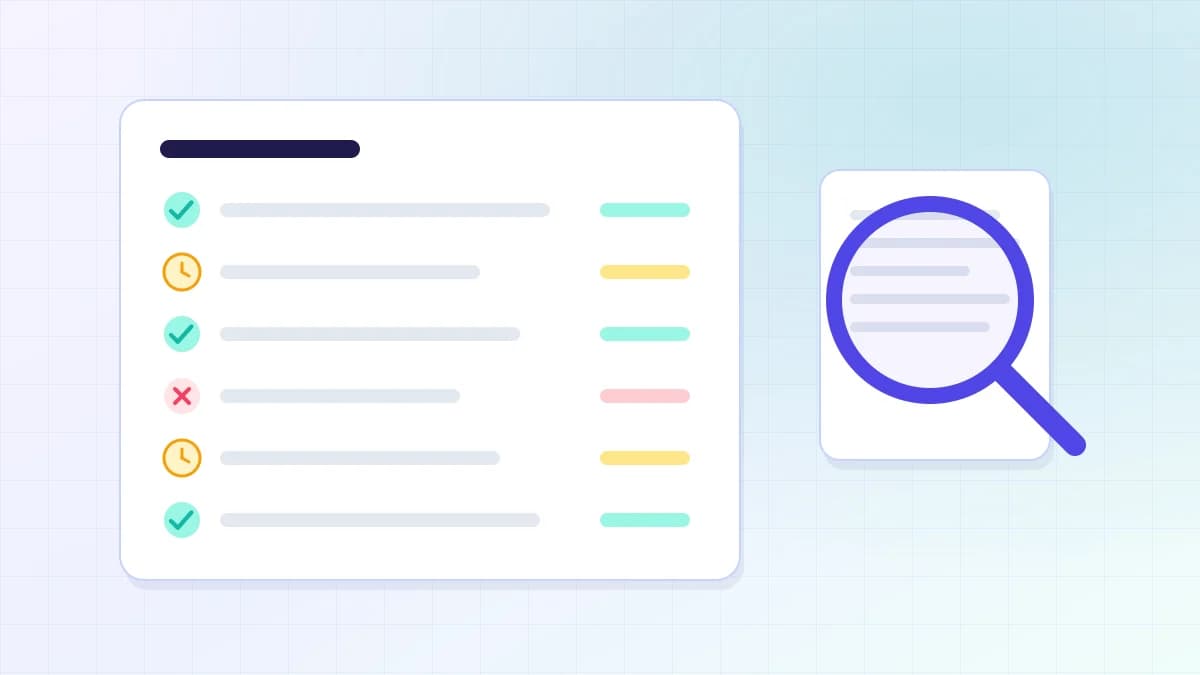
You published a page days or weeks ago, and searching for it in Google turns up nothing. Before rewriting anything, find out why. Google doesn't index every page it knows about, and the reason for a missing page is usually recorded in Search Console — you just have to read the right report.
In short: open Search Console's Page indexing report and look up the reason given for your page. Technical blocks — server errors, redirect problems, robots.txt blocks, noindex, 404s and soft 404s — are yours to fix. "Discovered" and "Crawled – currently not indexed" mean Google hasn't prioritised the page: make it faster to crawl, better linked and more clearly useful. Duplicate statuses are often fine. After fixing, request indexing for a few key pages and let Google recrawl; indexing is never instant.
How a page gets into Google's index
A page goes through several stages, and it can stall at any of them:
- Discovery: Google learns the URL exists, through links or a sitemap.
- Crawling: Googlebot requests the page. Robots.txt rules, server errors or a slow server can stop or delay this.
- Processing: Google reads the content, renders it if needed, and checks signals such as noindex and canonical tags.
- Indexing: Google decides whether to store the page, and which URL to store if several are duplicates.
Each stage has its own failure reasons, which is why one generic fix ("submit it again") rarely works.
Where to look
- Page indexing report (Indexing → Pages): how many of your known pages are indexed, and the reasons the rest aren't.
- URL Inspection: the status of one URL, including whether crawling and indexing are allowed, when it was last crawled, and which canonical you declared versus the one Google chose. "Test live URL" checks the current version. Our Search Console guide walks through this tool and the other reports.
- Sitemaps report: whether Google could read your sitemap and how many URLs it found.
- Crawl stats (Settings): response codes over time and host problems such as server errors or robots.txt fetch failures.
The reasons, grouped by what you can do
| Group | Status in the report | Who acts |
|---|---|---|
| Technical blocks | Server error (5xx); Redirect error; URL blocked by robots.txt; URL marked 'noindex'; Soft 404; Not found (404); Blocked due to unauthorized request (401) or access forbidden (403) | You fix them |
| Google hasn't prioritised the page | Discovered – currently not indexed; Crawled – currently not indexed | You improve the page and the site; Google decides |
| Duplicates and canonicals | Alternate page with proper canonical tag; Duplicate without user-selected canonical; Duplicate, Google chose different canonical than user; Page with redirect | Often nothing; sometimes align your signals |
Fixing technical blocks
Server errors (5xx) and an unreliable site
A page that returns a server error can't be indexed, and a site that errors often gets crawled less. Check the page with the HTTP Status Code Checker and the site with the Server Status Checker, then look at host status in Crawl stats. Pay special attention to robots.txt: when that file returns a server error, Google temporarily holds back from crawling the site, so an outage there affects every page. Reliable hosting matters more than most on-page tweaks.
Redirect errors
Loops, very long chains, and redirects to empty or invalid URLs all stop indexing. Trace the URL with the Redirect Checker; every redirect should be a single hop to a page that returns 200.
Blocked by robots.txt, or marked noindex
These are different controls. Robots.txt stops crawling; noindex stops indexing. A page you want indexed must be crawlable and free of noindex — in the HTML or in an X-Robots-Tag header, which Get HTTP Headers will show. And a page you want removed should be crawlable with noindex, not blocked in robots.txt, or Google never sees the noindex. Our robots guide explains the difference in detail, and the Robots.txt Generator helps you write rules that block only what you mean to.
Soft 404s
A soft 404 is a page that returns 200 but looks empty or says "not found" — an empty search result page, a category with no products, a placeholder. Return a real 404 or 410 for pages that genuinely don't exist, or give the page real content.
Not found (404), 401 and 403
A 404 for a page you deliberately removed is fine. For a page that moved, add a 301 redirect to its new address. A 401 or 403 means Googlebot was refused — usually a login wall or a security rule. Pages behind a login can't be indexed; check that security plugins or firewalls aren't blocking pages that should be public.
"Discovered" and "Crawled – currently not indexed"
Discovered – currently not indexed
Google knows the URL but hasn't crawled it yet. According to Google's documentation, this usually means it rescheduled the crawl because crawling then was expected to overload the site — so the last-crawled date is empty. On a new or small site it also reflects how much Google wants to crawl it so far. What helps:
- a fast, reliable server (see above)
- links to the page from pages Google already crawls, especially your homepage, hubs and categories — the ones that matter most should be reachable in a few clicks
- a sitemap that lists only canonical, indexable URLs (our XML sitemap guide covers what belongs in it)
- not generating endless near-identical URLs through filters, sort orders or parameters, which spreads crawling thin
Crawled – currently not indexed
Google fetched the page and chose not to index it, at least for now. Google says the page may or may not be indexed later and that there's no need to resubmit it. Treat this as a signal about value rather than a technical fault. Ask honestly whether the page adds something that other pages — yours or other sites' — don't:
- Is it thin, or one of many near-identical pages generated from a template?
- Does it overlap another of your pages? If so, consolidating them may help — see our guide to keyword cannibalization.
- Is it well linked from relevant pages, or only reachable through the sitemap?
- Does it give a complete, original answer for its topic?
Duplicate and canonical statuses
Alternate page with proper canonical tag means the page points to another as its canonical and Google agrees — that's working as intended. Page with redirect is likewise normal for URLs that redirect. Duplicate without user-selected canonical means Google treats the page as a duplicate and you haven't declared a preference: inspect the URL to see which canonical Google chose, and declare the right one if it's wrong. Duplicate, Google chose different canonical than user means your signals disagree; check that the canonical you declared is similar in content and that your sitemap and internal links use the same URL. The canonical tags guide walks through aligning these signals.
Diagnosing one URL, step by step
- Inspect the URL in Search Console and read the coverage details.
- Check "Crawl allowed?" and "Indexing allowed?" — a "No" points straight to robots.txt or noindex.
- Check "Page fetch" — a failure points to server errors, redirects or access blocks.
- Compare the user-declared canonical with the Google-selected one.
- Run "Test live URL" to confirm the current version is fetchable and indexable.
- Fix the cause, then use "Request indexing" once for that URL.
To find problems across a whole site rather than one URL, run an SEO Audit crawl: it reports status codes, redirect chains, noindex tags, canonicals and orphan pages in one pass. Our technical SEO audit checklist shows how to work through the results in priority order.
A worked example
Suppose a new site with 200 pages sees 60 indexed, 110 "Discovered – currently not indexed" and 30 "Crawled – currently not indexed" after its first month. Crawl stats show a few days of server errors when the host went down. The plan: fix hosting reliability first, because errors slow crawling of everything else; make sure every important page is linked from the homepage or a category page, not just the sitemap; regenerate the sitemap with the Sitemap Generator so it lists only working, indexable pages; then review the 30 crawled-but-not-indexed pages for thin or overlapping content and improve or merge them. Finally, request indexing for the handful of most important pages and give Google a few weeks.
How long fixes take
After fixing an issue, you can click Validate fix in the report. Fix every instance first, click it once, and wait: Google says validation typically takes up to about two weeks, sometimes longer, and it also notices fixes during normal crawling. "Request indexing" in URL Inspection can shorten the wait for an individual URL, but there's a daily limit and indexing is still not instant — save it for important pages.
Common mistakes
- Requesting indexing again and again for the same unchanged page.
- Blocking a page in robots.txt and adding noindex to it — Google can't see the noindex.
- Sitemaps full of redirects, 404s and noindexed URLs.
- Assuming "crawl budget" is the problem on a small site, when the real issue is thin or duplicated pages.
- Publishing hundreds of near-identical pages and expecting all of them to be indexed.
Frequently asked questions
Does requesting indexing guarantee a page will be indexed?
No. It asks Google to crawl the URL sooner. Whether the page is indexed still depends on Google's assessment.
Does Google index every page on a site?
No. Google indexes the pages it judges worth storing. It's normal for some pages, such as duplicates or very thin pages, never to be indexed.
Should I delete pages that are "Crawled – currently not indexed"?
Not automatically. Improve the ones that should rank, merge the ones that overlap, and remove or noindex the ones that have no value for searchers.
Why does the report count differ from a site: search?
A site: search is a rough sample, not a complete count. Use the Page indexing report and URL Inspection for accurate status.
Next step
Open the Page indexing report, note the three reasons affecting the most pages, and inspect one example URL for each. Fix the technical blocks first, then work on the pages Google has crawled but not indexed.
- #Crawling & Indexing
- #Technical SEO
- #SEO Audit
Related reading
Technical SEO
How to Create an XML Sitemap for a Website
An XML sitemap tells search engines which pages you want found. Here's what to include, how to structure it for large sites, and how to keep it accurate.
5 min read
Technical SEO
Robots.txt vs Meta Robots vs X-Robots-Tag
Robots.txt controls crawling; meta robots and X-Robots-Tag control indexing. Mixing them up is one of the most common ways sites accidentally disappear from search.
5 min read
Technical SEO
How to Use Canonical Tags to Prevent Duplicate URL Problems
The same page often lives at several addresses. Canonical tags tell search engines which one to index — when they agree with your other signals.
5 min read
Technical SEO
How to Perform a Technical SEO Audit Step by Step
A technical audit answers one question: can search engines reach, understand and index your important pages? Here is the order to check things in, and what to fix first.
6 min read